

Adjust Laptop Brightness 2.0.0.266
Adjust Laptop Brightness (ALB) by RogosSoft is a lightweight system tray utility that puts a brightness slider at your fingertips, with auto-hide, idle dimming, and monitor-off timer features. It supports a wide range of laptop brands and costs $19.95 after a 15-day free trial. However, it hasn't been officially updated for Windows 11, and its last major release (version 2.0.0.266) dates back years. Free alternatives like Twinkle Tray, Monitorian, and LightBulb offer better features, active development, and external monitor support at zero cost. In 2026, ALB is hard to justify when Windows 11 has a native brightness slider and free tools do the job better.
- Free trial
- Windows
- Nov 12, 2026
c87e803f75a4e9d06f49db1b2b96af6f2cfee73bc4b4a696f8fde87ceb2627c7VirusTotal report ↗Screenshots
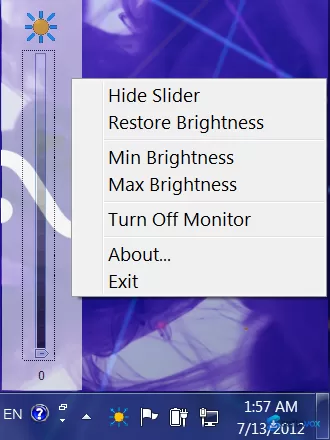
About Adjust Laptop Brightness
Adjust Laptop Brightness Download, Simple Screen Dimmer for Windows
TL;DR Quick Take / Who is this for?
Adjust Laptop Brightness is a lightweight Windows utility designed to give you a single slider for controlling screen brightness, aiming to save battery life and reduce eye strain compared to digging through Windows settings or using keyboard function keys. It targets laptop, netbook, and ultrabook users who want quick access to brightness adjustments, with options for automatic dimming after a set time. However, the software is quite dated, the Softonic listing notes it was last updated nine years ago and is a trial version with a one-time payment required. User feedback is mixed, with some reporting it fails to adjust the actual backlight on certain laptops and instead distorts screen colors. This tool is only suitable for users who need a basic, no-frills brightness slider and are willing to try a trial on older hardware. It is not recommended for most modern Windows 10 or 11 users, who have better, free, and actively maintained alternatives like Twinkle Tray.
Quick Info Box
| License Type | Trial version (one-time payment required for full use) |
|---|---|
| File Size | Approx. 913 KB |
| OS Compatibility | Windows 10, 8, 7, Vista, XP |
| Latest Version | 2.0.0.266 |
| Developer | Rogosoft |
Key Features & Real-World Usability
The core function is straightforward: a slider interface lets you manually dim or brighten your screen without using keyboard shortcuts or navigating Windows settings menus. The software also includes auto-settings for reducing brightness after a predetermined number of minutes or turning off the display after a customized time, which can help conserve power when the laptop is idle. A notable, if controversial, feature is its fallback behavior: if the software cannot adjust the hardware backlight, it will instead alter screen contrast or colors to simulate a brightness change. While intended to ensure the slider always has some visible effect, this can result in a distorted image. The tool is compatible with a wide range of laptop brands including HP, Dell, Lenovo, Acer, and even Apple hardware running Windows. The interface is described as simple and minimal, making it easy to understand at a glance. The limitations are significant for a modern audience. The software is very old and has not been updated in years, raising concerns about compatibility with newer hardware and Windows updates. The trial model means you cannot fully evaluate the software's long-term reliability without paying, and the fallback color-distortion method is a poor substitute for true backlight control.
- Slider-based brightness control: Provides a single, simple slider to adjust screen brightness instead of using keyboard keys or settings menus.
- Automatic dimming and display off: Allows you to set a timer to reduce brightness or turn off the screen after a period of inactivity to save power.
- Wide hardware compatibility: Designed to work on laptops from major brands like HP, Dell, Lenovo, and others, including Apple hardware running Windows.
- Fallback contrast adjustment: If hardware backlight control is not possible, the software changes screen contrast or colors instead to simulate a brightness change.
Pros, Cons & Community/User Feedback
User sentiment around Adjust Laptop Brightness is limited but leans negative due to a critical functional flaw. On the Softonic page, the software holds a user rating of 2.6 out of 5 from a small sample. The most detailed user review describes a common failure: "Couldn't adjust the backlight on my laptop. The program didn't adjust the backlight on my laptop (no save on battery this way), just the screen colours - making it look distorted." This highlights the main problem with the fallback method, it can make the display look worse without delivering the promised battery savings. Another common complaint is the lack of transparency; the user notes there "should be an option to disable affecting screen colours in case it can't adjust the backlight," and that the program should indicate when it is using this workaround. On the positive side, some older reviews and download portals acknowledge its simplicity. The Softonic listing itself notes pros like "Saves battery life" and "Optimizes laptop or desktop display," but these are presented as general benefits rather than verified user experiences. The practical takeaway is that while the concept is sound, the execution is dated and unreliable on many laptops, leading to a frustrating user experience where the software's primary function fails and its fallback makes the screen look worse.
Pros
- Extremely lightweight and small download (under 1 MB)
- Simple, single-slider interface is easy to understand
- Includes automatic dimming and display-off timers for power saving
- Compatible with a wide range of older laptop brands
Cons
- Often fails to control the actual hardware backlight on many laptops
- Fallback method distorts screen colors and contrast instead of dimming the backlight
- No option to disable the color-distorting fallback or indicate when it is active
- Very outdated; last updated nine years ago, raising compatibility and security concerns
- Trial version requires a one-time payment for continued use
- Limited user feedback and a low rating (2.6/5) on the Softonic page
Final Verdict & Safe Download Advice
Adjust Laptop Brightness is a product of a bygone era. Its core promise, a simple slider to save battery and reduce eye strain, is appealing, but the execution is unreliable on modern hardware. The critical flaw is its inability to adjust the true hardware backlight on many laptops, resorting instead to a color-distorting workaround that defeats the purpose of saving power and can make your display look worse. Given that the software has not been updated in nearly a decade and requires payment after a trial, it is difficult to recommend over free, actively maintained alternatives. If you are using an older Windows 7 or Vista laptop and the trial works perfectly for your specific hardware, it might be a minimal solution. However, for the vast majority of users on Windows 10 or 11, the honest recommendation is to skip this tool. Look instead at free, open-source options like Twinkle Tray, which is designed for modern Windows and supports multiple monitors, or explore Windows' built-in brightness settings, which have improved significantly in recent versions.
- Download only from the official Softonic page or the developer's site: The Softonic listing is the source in this review, but be aware that it is a third-party portal. If you choose to try the trial, ensure you are downloading from a reputable source and not a lookalike site that may bundle adware.
- Verify the file size and version: The installer is approximately 913 KB, and the current version is 2.0.0.266. A dramatically larger file or an installer claiming a newer version from an unofficial source is a warning sign.
- Check compatibility with your specific laptop model: The software's biggest failure point is its inability to control the backlight on certain hardware. Use the trial to verify that it actually adjusts your screen's backlight (not just colors) before considering a purchase.
- Be aware of the trial limitation: The Softonic page lists this as a trial version. You will likely need to pay for a license to continue using it after the trial period, and given the software's age, the value proposition is questionable.
- Consider free alternatives first: For modern Windows systems, free tools like Twinkle Tray offer more reliable brightness control, support for multiple monitors, and active development. These are safer and more effective choices for most users.
Similar software

Key features
- System Tray Slider, Quick brightness adjustment from the notification area
- Auto-Hide Slider, Disappears after a few seconds to keep your workspace clean
- Idle Dimming, Automatically dims the screen after a set period of inactivity
- Monitor Off Timer, Turns off the display completely after idle time
- Startup Calibration, Adjusts brightness when Windows boots
- Wide Laptop Support, Works with HP, Dell, Lenovo, Sony, Toshiba, Samsung, Acer, MSI, and Apple laptops
- Lightweight, Uses minimal system resources
- 15-Day Free Trial, Test before buying
- Price, $19.95 shareware license
- Compatibility, Windows XP, Vista, 7, 8, and 10 (Windows 11 not officially supported)
Frequently asked questions about Adjust Laptop Brightness
Is Adjust Laptop Brightness free?
What is Adjust Laptop Brightness used for?
Does Adjust Laptop Brightness work on Windows 11?
Do I need Adjust Laptop Brightness in Windows 11?
How do I uninstall Adjust Laptop Brightness?
Versions
| Version | Release date | Platform | File size | |
|---|---|---|---|---|
| Adjust Laptop Brightness 2.0.0.266 Latest version | Oct 13, 2026 | Windows | 922 KB | Download |
Comments about Adjust Laptop Brightness
No comments yet. Share your experience with this program!